


Start from: The Easilys menu.
- Select the Equipment > Equipment tabs.
- Select the equipment file that you want to transfer to another Easilys site.
- Select Transfer at the bottom of the equipment file.
The "Transfer equipment" window displays on the screen.
- Select to which site the equipment should be transferred.
Note: The sites available in the list for a transfer are only the child sites. If you want to perform transfers between sites of the same level, position yourself on the parent site which will be able to perform transfers between all sites.
- Optional: Make modifications as needed at the level of the purchase price, the commissioning date and the renewal year.
- Optional: Modify the general condition of the equipment as needed.
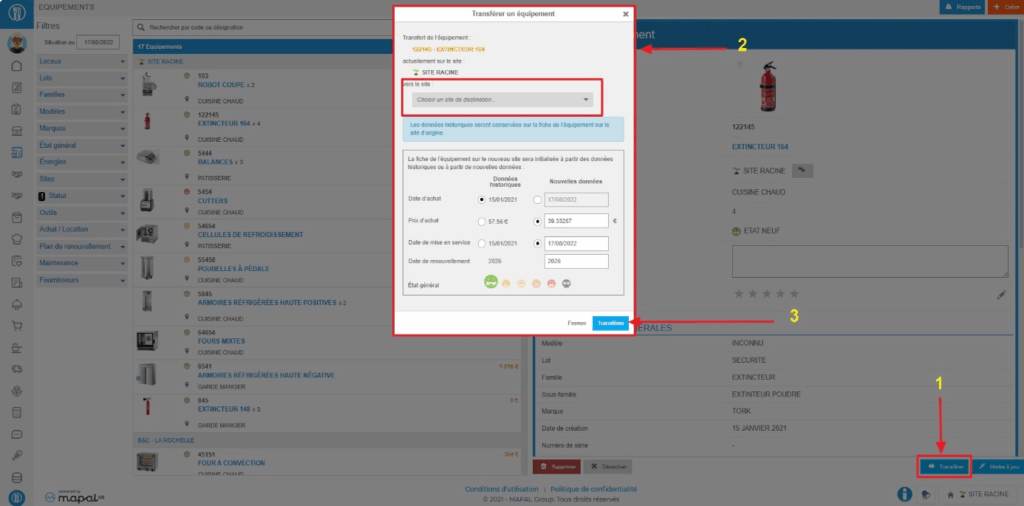
- Select Transfer.
The equipment file is now available on the destination site.
Note: The parent site can see all equipment files sorted according to the site on which they are located. A child site can only view its equipment files or those of its own child sites.
