


Note: each action performed on the application is subject to user permissions. If you are unable to carry out the recommended actions in the articles you are viewing, this may mean that the necessary rights have not been activated for your user profile. Contact the Support team, or your administrator, to find out more.
Start from: The Easilys menu.
- Select Equipment items > Preventive.
- Select "Generate all" at the top right of the screen.
- The "Generate a maintenance intervention" window appears on the screen.
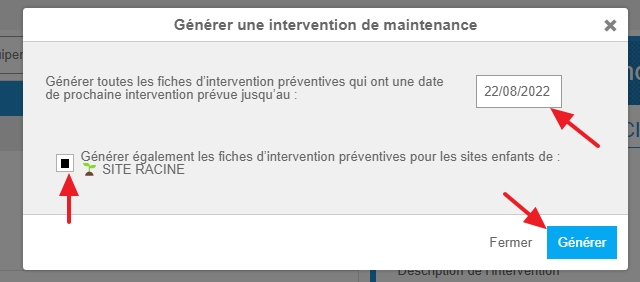
- Indicate up to which scheduled maintenance date indicated on the preventive maintenance sheets the application should take into account when generating maintenance tasks.
- Optional: Check the box "Also generate preventive maintenance sheets for child sites of:" so that preventive maintenance records for child sites are also taken into account when generating maintenance requests.
- Select Generate.
Validation process
- When you generate intervention requests, they do not become active immediately. All new requests enter the “To be validated” state.
- An approver must review each request and either:
- Approve, which confirms the intervention and locks further modifications, or
- Refuse, with a required justification.
- Once validated, the request can no longer be modified (only processed further).
Processing intervention requests
- Intervention requests can be managed from Equipment items > Interventions.
