


Business needs
Entering guest numbers allows you to record, on a daily basis, the number of guests for each menu, with details at the level of services (breakfast, lunch, dinner…), meal elements (starter, main course, dessert…) and recipes.
From the guest numbers, it is possible to anticipate production and later observe the difference between forecasted guest numbers and ordered guest numbers.
General information
For a single day:
- Each menu includes one or more services.
- Each service includes one or more meal elements.
- Each meal element includes one or more recipes.
Example of a single day:
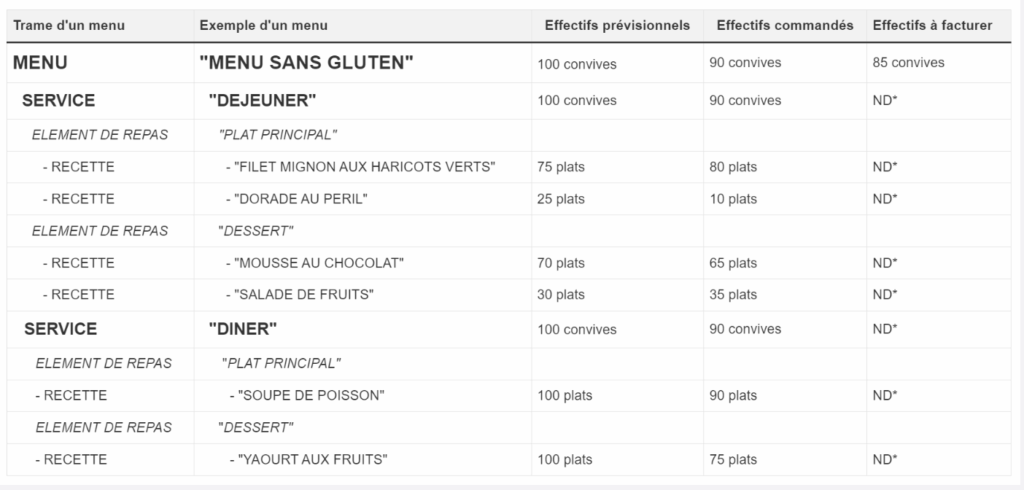
*ND: Not available in the current version of the application.
Note: A menu is generated from a menu template.
For each menu, it is possible to track daily:
- Forecasted guest numbers (estimated number of guests/dishes).
- Ordered guest numbers (actual number of guests/dishes ordered).
- Billable guest numbers (number of guests).
General rules for forecasted guest numbers:
- The forecasted guest number can only be modified for a future date (D+1).
- Changing the forecasted guest number automatically updates the ordered guest number, provided the ordered number has not yet been entered by the user.
General rules for ordered guest numbers:
- The ordered guest number for a past, present, or future date is freely editable.
- The ordered guest number has a status indicating whether the user has manually entered a specific quantity. The cell color visually identifies that ordered guest numbers were user-entered.
- The ordered guest number allows reverting to the previous quantity (via a back button appearing in the cell on mouse hover). If the previous quantity equals the initial quantity, the value is considered not user-entered. This helps correct user input errors.
Note: This revert option is only available during the current session (if the user closes the application and returns to the screen, the revert is no longer possible).
It is also possible to reset the ordered guest number to the forecasted number by clearing the ordered cell and exiting it.
General rules for billable guest numbers:
- As long as the user has not entered a billable guest number, the billable column equals the ordered guest number.
- The billable guest number for a past, present, or future date is freely editable.
- The billable guest number has a status indicating whether the user entered the quantity manually. The highlighted cell color visually identifies that billable guest numbers were user-entered.
- The billable guest number allows reverting to the previous quantity (via a back button appearing in the cell on hover). If the previous quantity equals the initial quantity, the value is considered not user-entered. This helps correct input mistakes.
Note: This revert option is only available during the current session (if the user closes the application and returns to the screen, the revert no longer available).
- It is also possible to reset the billable guest number to the ordered number by clearing the billable cell and exiting it.
- If the user enters a billable number of 0, this value is significant.
- If a service in a template has the option Included in guest numbers disabled, the billable guest number cannot be entered and displays as NF (Non-billable).
General settings impacting the Guest Number Entry screen
At the site parameter level:
- The parameter Do not display this site in the site tree hides a site from the site hierarchy to simplify it. By default, this parameter is not enabled.
- The parameter Do not display menus on this site hides any menus for the site. By default, this parameter is not enabled.
Functional scope
Site search function
The site search lets you find any site within the site hierarchy the user has access to.
Note: If the Do not display this site in the site tree parameter is enabled for some sites, then these sites will not appear in the tree.
Select a site and/or menu
Selecting a site displays its assigned menus with guest numbers for the chosen period.
Note: If the Do not display menus on this site parameter is enabled for some sites, their menus will not appear.
Selecting a specific menu displays guest numbers for its services, including detail by meal element and recipe.
Initialization/Modification of numbers at the menu level
Forecasted/ordered guest numbers at the menu level are initialized/calculated automatically:
- Either by the service’s guest number, if there is only one service (e.g., Service1 = 100 then Template = 100).
- Or by the service guest numbers, if all service numbers are identical (e.g., Service 1 = 100, Service 2 = 100 then Template = 100).
- Otherwise, the number is initialized at 0 (e.g., Service1 = 100, Service2 = 200, then Template = NC “Not Calculable”).
If the menu has different services but the same guest numbers, you can edit the menu number, and each service will update accordingly (e.g., Service1 = 200, Service2 = 200; setting the menu to 300 updates each to 300).
If the menu has services with different guest numbers, the menu is NC (Not Calculable and not editable).
Billable guest numbers initialize automatically from the ordered numbers. The user can freely edit the billable numbers.
Initialization/Modification at service level
Forecasted guest numbers for services initialize automatically:
- Either from the forecast template configuration.
- Or directly from the menu if it was generated.
If the services have the same value, editing the menu number propagates to each service (see example above).
Billable guest numbers are currently not managed at the service level.
Initialization/Modification at meal element level
No guest numbers are displayed or calculated for a meal element.
Initialization/Modification at recipe level
Forecasted guest numbers at the recipe level initialize automatically:
- Either from the template configuration.
- Or directly from the menu if it was generated.
Editing the forecast at service level:
- Impacts recipe forecasts proportionally, using the same ratio as before.
- If the previous number was 0, the ratio is not calculated.
- Take-up rates configured in the menu template are not taken into account.
- If necessary, the calculated number is rounded to the nearest integer.
Billable guest numbers are not currently managed at the recipe level.
Duplicate a reference day/period
To make data entry easier, it is possible to duplicate (copy/paste) a reference day or period to a target day or period.
The general principle of duplication is as follows:
- The ordered headcount from the reference day or period for the current site and its child sites is duplicated to the target day or period, for all frames common to forecasted, ordered, and billable headcounts.
- This automatically affects the forecasted, ordered, and billable headcounts.
Before applying the duplication, in the case of a single-day duplication, a summary of its impact is shown to help with understanding and control. It is displayed between the two dates:
- The number of shared frames.
- The number of frames unique to the reference day or period, which will not be copied to the target day or period.
- The number of frames unique to the target day or period, which will not be affected by the duplication.
Business rules
- Duplication is performed from the current site and its child sites and is applied to the same current site and its children.
- The reference period can be set in the past, present, or future.
- The target period must be a future date (day +1) and after the reference period.
- It is the ordered headcounts from the reference period that are duplicated into the forecasted, ordered, and billable headcounts for the target period.
- The headcounts copied into the target period are considered as not manually entered by the user.
- In the target period, it is not possible to recover previously entered headcounts that were replaced by a duplication, even if they were manually entered earlier.
- Duplication is limited to a single day at a time.
- Child sites/frames/services/meal elements that do not exist on both dates (the reference and target period) are ignored.
Details on recipe-level duplication:
- The chance of recipes matching between days is low.
- Guest numbers are distributed across target recipes based on the reference-day ratios, preserving the meals' configured order.
Three cases:
- Same number of recipes ? distribution identical.
- More recipes on target day ? extra recipes have zero forecasted and ordered numbers.
- Fewer recipes on target day ? ratio is calculated for proper distribution.
In all cases, target day numbers match reference day numbers.
Billable numbers at recipe level are not currently managed.
Filters
Guest number types: This filter customizes the view to certain guest number types for easier entry and consultation.
Reports
Status of ordered guest number entries by site/round: This report lists sites where ordered entries have or haven’t been made, considering rounds.
Display options allow tailoring the report to the desired context.
