


Start from: The Easilys menu.
The Production Management screen is usable as soon as are using recipes that are "stockable", which are then called finished products.
This screen is used to manage stock entries for finished products. It is a feature designed for production establishments such as laboratories that subsequently deliver their production. It can also be used if you want to record the production you store in your inventory. Stock entries made from this screen can be linked either to menus or to orders placed by your child sites.
Note: This article does not concern the stock entry of goods. If you want information on the stock entry of goods, please refer to the article Manage stock entries of goods.
Prerequisites
Have configured recipes as stockable. The procedure is indicated in the article Manage finished products, or how to manage your recipes as supplier products.
Procedure to follow
- Select Production > Production management.
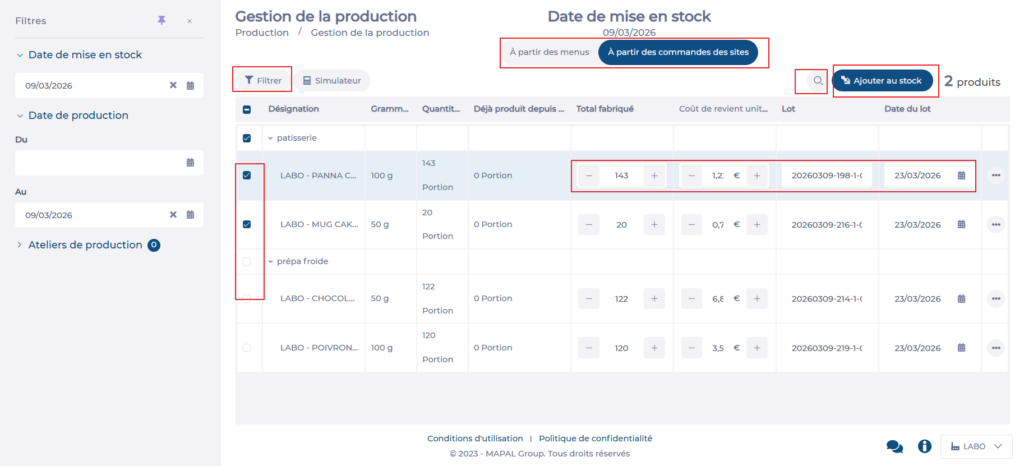
- Position the cursor according to your case:
- On "From menus" if the productions you want to add to your stock correspond to recipes positioned in your menus.
- On "From site orders" if the productions you want to add to your stock correspond to products you see on the "Site supply" screen because child sites have ordered them from you.
- By default, the screen displays the date of the day, but you can select another date in the filters.
- Select the items you wish to enter into stock from the list provided by Easilys.
- Modify if necessary the quantities produced and/or the costs.
- Change the batch number and expiry date if necessary.
- Click on "Add to stock" and then confirm.
Note: If you wish to add finished products to your stock, but they are neither planned in your menus nor ordered by your child sites, you can make this stock entry directly from the "Stock" screen. Refer to the article Manually add finished products to stock.
