Start from: The Easilys menu.
Principle
The Finished product production plan screen is specifically dedicated to contexts where a site manufactures products intended to supply other sites. It allows you to plan concretely what to produce and when. Only recipes corresponding to finished products ordered by child sites and visible in the Site supply screen are displayed here.
Note: This production plan is not based on menus. For menu-based production, see Manage your production plan.
- Select Production > Finished product production plan.
- Use the arrows or the calendar to display the desired period.
- If needed, show or hide workshops using the left-hand panels.
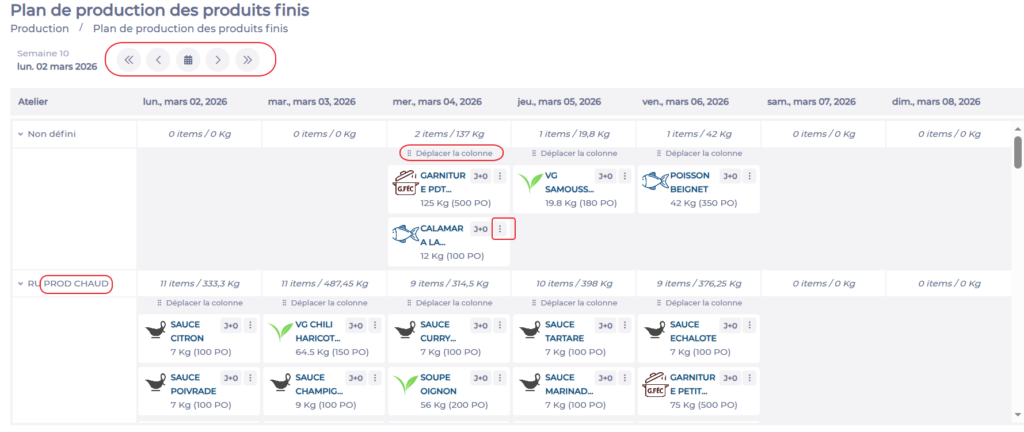
Productions are displayed at the date calculated according to the production offset rules defined in the From site orders view, as indicated in Create, edit, delete production postponement rules. For each recipe, you can see how many days before its dispatch it needs to be produced (D+..).
Edit recipe production dates
- To move all recipes in a workshop from one date to another, drag and drop from the Move column area.
- To move an individual recipe, drag and drop from its image area, or select the … icon for the recipe and choose a date.
- To reposition a recipe to its original date, select the … icon for the recipe and select Cancel move.
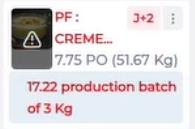
Note: If you move a recipe to a date that does not respect its shelf life, a warning is displayed at the top of the column and the recipe name appears in red.
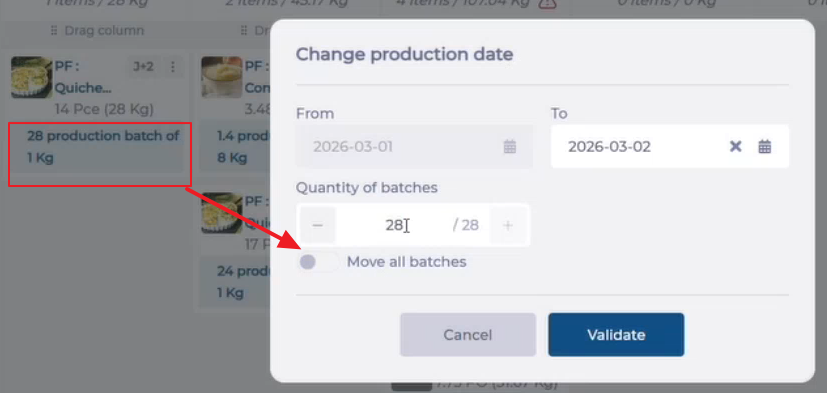
If you have defined production batches for recipes, you can move them individually:
- Drag and drop from the blue area of the recipe where the number of batches appears.
- Edit the date.
- Deactivate the Move all batches selector.
- Specify the number of batches to move to this date.
- Select Validate.
Edit a production postponement rule
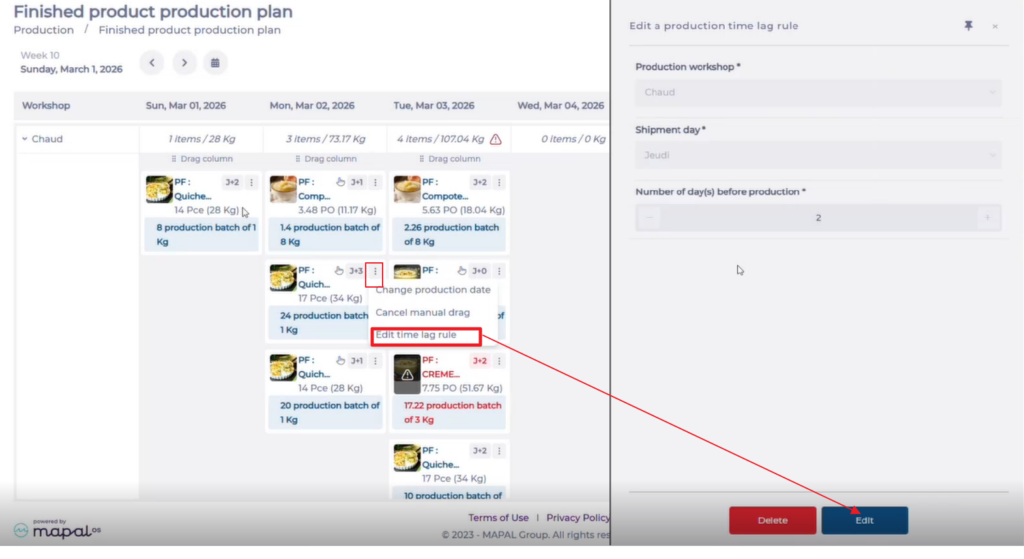
It is possible to edit a production postponement rule directly from this screen, without having to navigate to Production > Production postponement rules. If a recipe is subject to a rule, the Edit time lag rule option appears in its … menu.
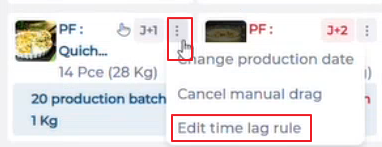
- Select Edit time lag rule.
- Select Edit.
- Make the desired changes.
- Select Save.
Note: The new rule applies immediately to all recipes that have not been manually moved.