


Note: each action performed on the application is subject to access permissions If you are unable to carry out the recommended actions in the articles you are viewing, this may mean that the necessary rights have not been enabled for your user profile. Contact the Support team, or your Admin, to find out more.
Start from: The Easilys menu.
A production postponement rule* allows you to tell Easilys the rules to follow to build your production plan according to your menus or according to the orders your child sites have placed with you if you are in "flow lab" mode.
The principle is to indicate in each rule how many days before the expected day of consumption or shipment it is necessary to produce the recipes, attached to a production workshop and a particular department.
- Select the Production > Production postponement rules tabs.
- Display the tab From the menus or From the site orders depending on your case.
- Select + Create.
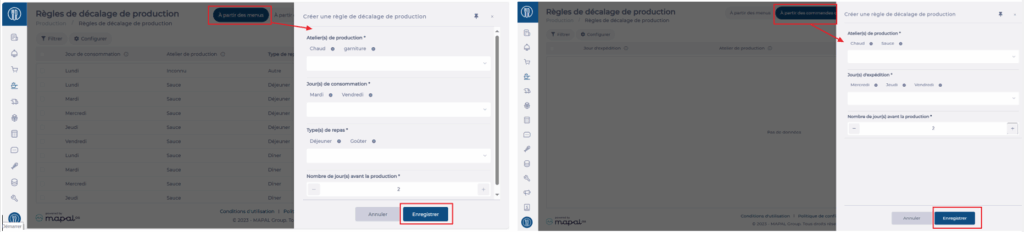
- Complete the items.
Note: To create production postponement rules more quickly, you can select multiple workshops, multiple days, and multiple meal types in the creation screen.
Example: If you deliver the day before consumption all the dishes from the hot and sauce workshops for Tuesday and Wednesday lunch menus, by selecting these elements and confirming, the system will generate the four rules at once:
- Tuesday lunch hot – 2 days before
- Tuesday lunch sauce – 2 days before
- Wednesday lunch hot – 2 days before
- Wednesday lunch sauce – 2 days before
- Confirm the creation of the rule.
To modify/delete a rule, several methods are possible:
- Click on the rule and then on Modify or Delete
- Click on the … at the end of the line and then choose the Modify or Delete option

To modify/delete several rules at once:
- Check the rules concerned
- Click on Actions
- Choose the desired action
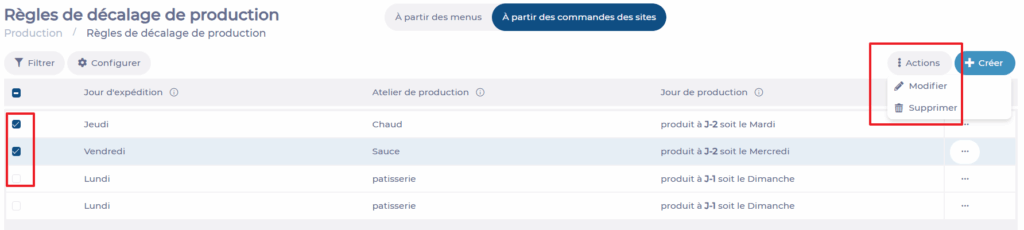
Note: if you perform a mass modification action, the selected rules will be deleted and replaced by the new rules resulting from the information entered in the modification screen.
