Start from: the Easilys menu.
Compliance thresholds allow you to indicate to Easilys the limits that must not be exceeded for a task to be considered compliant.
By entering these thresholds, you allow Easilys to automatically indicate whether the task is compliant or not when it is entered.
Your team members will no longer need to memorise all the thresholds. Thanks to Easilys, they will also be able to understand the reasons for a task's non-compliance, with precise explanations of the relevant threshold characteristics.
CREATE A THRESHOLD
- Select the PMS > Thresholds tabs.
- Select + Create at the top right of the screen.
A “Threshold administration” form appears.
- Complete the information requested in the “Information” section.
- Select Save to confirm the creation of the new threshold.

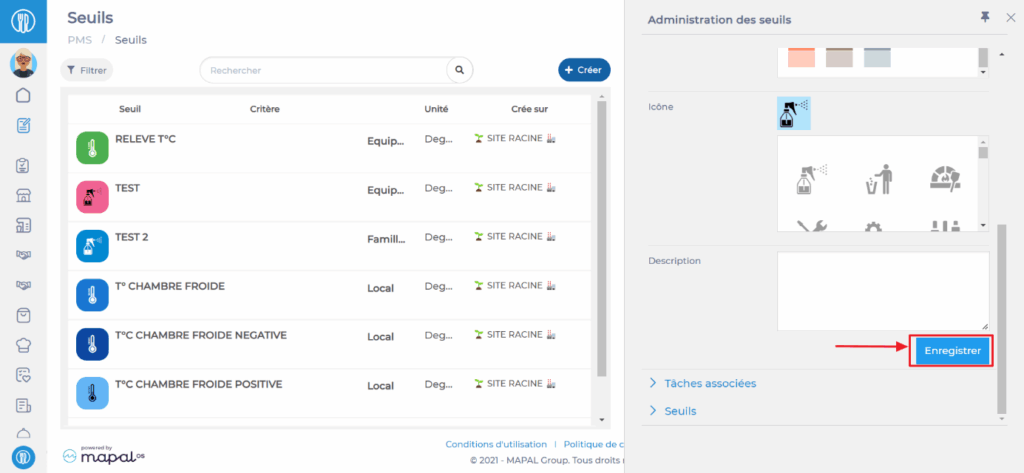
Note: The “Associated tasks” and “Thresholds” sections will only be accessible once the new form has been saved.
If you want to be able to submit a task to a threshold, it is necessary that the threshold and the task are linked to the same criterion and the same unit of measurement.
CONFIGURE A THRESHOLD
- Select the PMS > Thresholds tabs.
- Select an existing threshold in the display table.
The threshold details appear on the right of the screen.
- Go to the “Thresholds” section.
- Select Edit.
- Select +.
A minimum and maximum value line for the threshold appears.
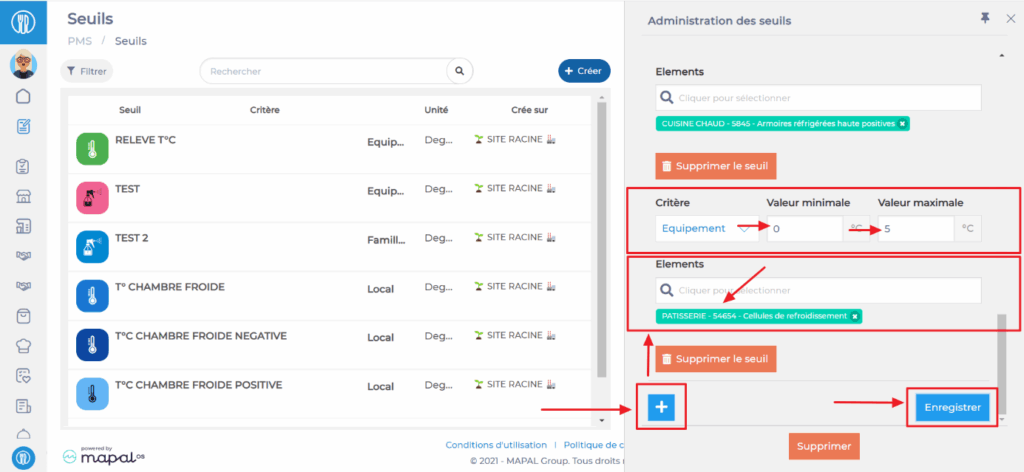
- Enter the criterion to be considered.
- Then select the criterion element to which the value will apply.
- Finally, enter the minimum and maximum values.
You can add several minimum and maximum values to the same threshold. This number depends on the number of elements attached to the criterion.
Thus, a single threshold can bring together several values. There is no need to multiply threshold forms. But you are free to determine your own system.
Example: You create a Local Temperature threshold. You want to manage the compliance thresholds for all your local temperature verification tasks.
-You add a line to manage thresholds valid only for the NEGATIVE COLD ROOM.
-You then add a line to manage thresholds valid only for the POSITIVE COLD ROOM.
-You add another line to manage thresholds valid only for the RECEPTION CENTRE.
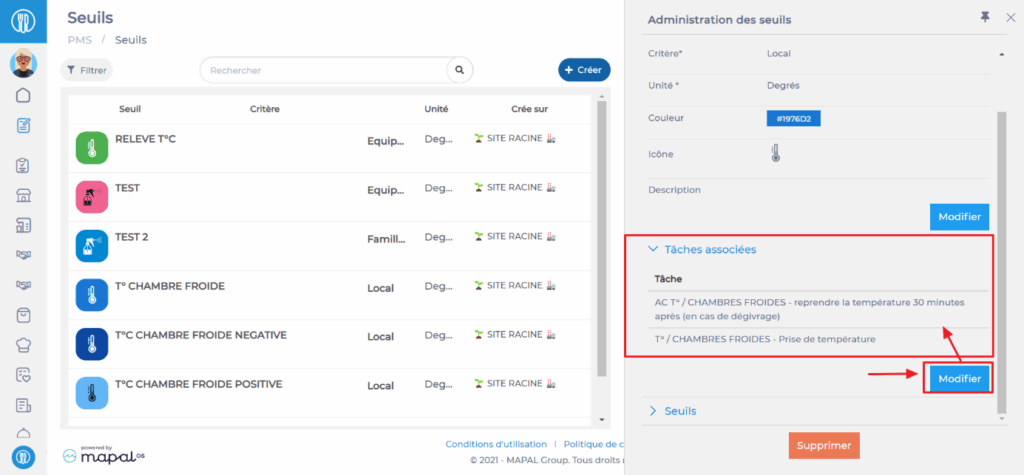
LINK THE THRESHOLD TO A TASK
- Select the PMS > Thresholds tabs.
- Select an existing threshold in the display table.
The threshold form appears on the right of the screen.
- Go to the “Associated tasks” section.
- Select Edit then select the search bar.
The list of all tasks with the same criterion and unit of measurement as the threshold appears.
- Select the task(s) to be linked to the threshold.
- Select Save.
Easilys will now automatically manage the compliance of tasks when they are entered.