


Note: actions performed on the Easilys platform are subject to user access permissions. If you are unable to carry out the actions described in the articles, it may be because you do not have the necessary permissions activated on your user profile. Contact the Support team, or your administrator, for help. Start from: The Easilys menu. If you make a mistake when entering or removing stock manually, you can correct it. To do this, simply cancel the erroneous stock movement, then redo it without errors. If the error is due to a stock entry resulting from the validation of a reception, it is necessary to reopen the reception to modify it, and then revalidate it. To find out more, see Reopen a completed reception.
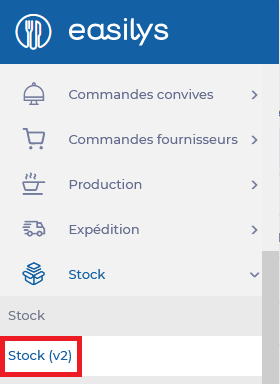 You are automatically redirected to the Stock section. Notes: it is also possible to delete a stock movement from the stock movements section of the stock screen, following the same procedure described below.
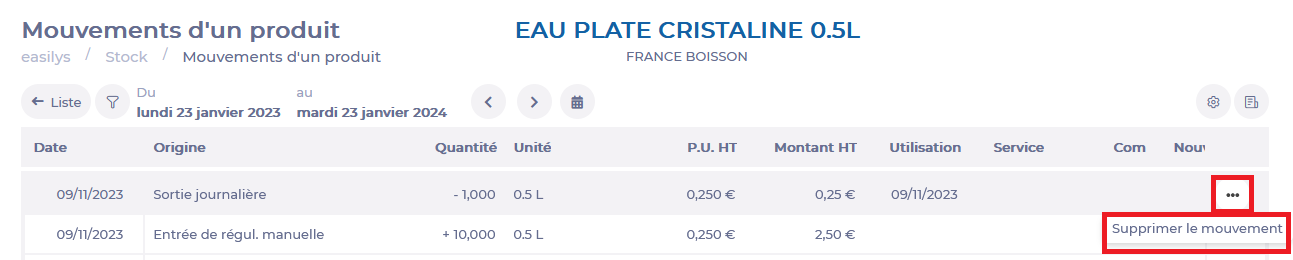
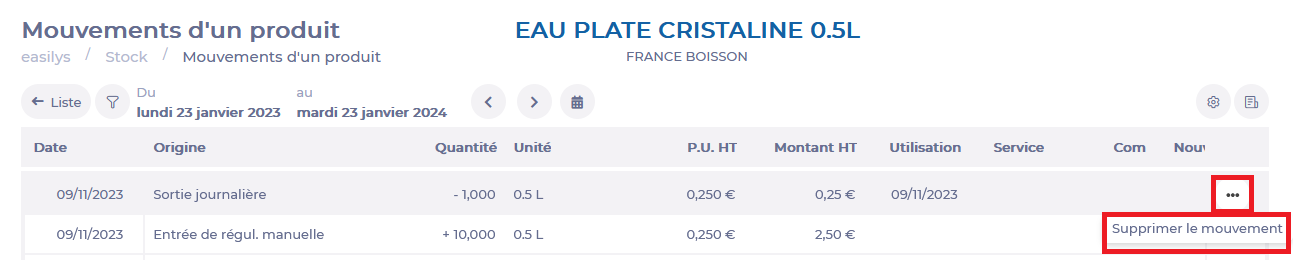
 The "Movements of a product" window appears. This is the history of stock movements for this product.
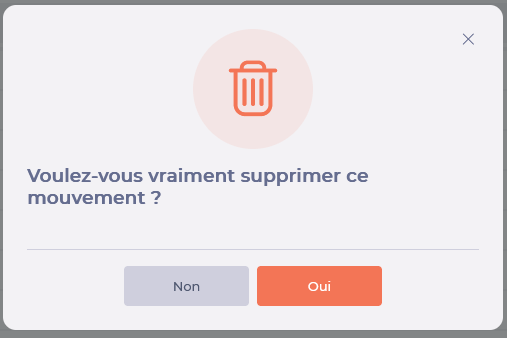
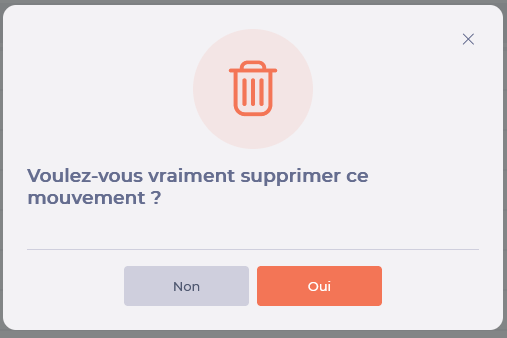
 A confirmation message appears.


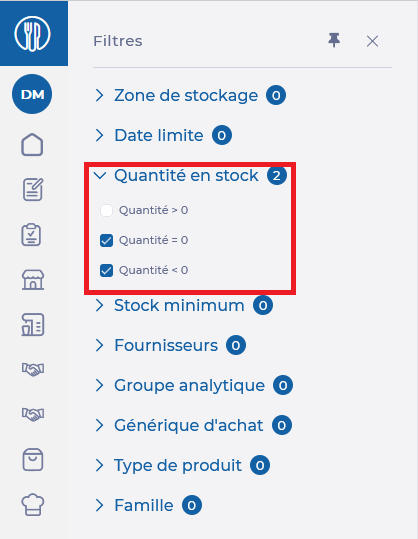 Negative and/or zero stock is displayed on the screen. This is the history of products previously in stock. Notes: negative and/or zero stock is reset at each inventory. It will therefore not include all the products that were once in stock, if you take inventory on a regular basis. In any case, it would be impossible to delete a stock movement carried out before or on the day of an inventory, as the inventory freezes the stock.
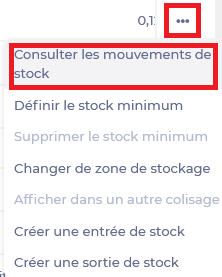 The "Movements of a product" window appears. This is the history of stock movements for this product.
 A confirmation message appears.
IF THE PRODUCT IS VISIBLE IN STOCK
- Select the Stock >Stock tabs.
You are automatically redirected to the Stock section. Notes: it is also possible to delete a stock movement from the stock movements section of the stock screen, following the same procedure described below.- Find the product on which a stock movement is to be cancelled.
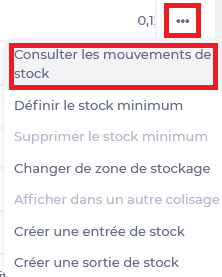
- Select the 3 dots at the end of the product line.
- Select Consult stock movements.
The "Movements of a product" window appears. This is the history of stock movements for this product.- Select the 3 dots at the end of the movement line to be cancelled.
- Select Suppressing movement.
A confirmation message appears.
- Select Yes.
- Select List to close the "Movements of a product" window.
IF THE PRODUCT IS NOT IN STOCK
- Select the Stock > Stock tabs.
- Select the Filters icon.
- Unfold the Quantity in stock filter.
- Select"Quantity=0" and/or"Quantity < 0".
Negative and/or zero stock is displayed on the screen. This is the history of products previously in stock. Notes: negative and/or zero stock is reset at each inventory. It will therefore not include all the products that were once in stock, if you take inventory on a regular basis. In any case, it would be impossible to delete a stock movement carried out before or on the day of an inventory, as the inventory freezes the stock.- Find the product on which a stock movement is to be cancelled.
- Select the 3 dots at the end of the product line.
- Select Consult stock movements.
The "Movements of a product" window appears. This is the history of stock movements for this product.- Select the 3 dots at the end of the movement line to be cancelled.
- Select Suppressing movement.
A confirmation message appears.
- Select Yes.
- Select List to close the "Movements of a product" window.
- Use the Quantity in stock filter again by selecting the Quantity>0 option to return to normal stock.
