


Start from: The Easilys menu.
- Go to Menus > Menu quantities.
Open the Reports panel
- Select a site in the Sites tree.
- Select a menu in the Menu(s) for the selected site list.
- Select the Reports icon.
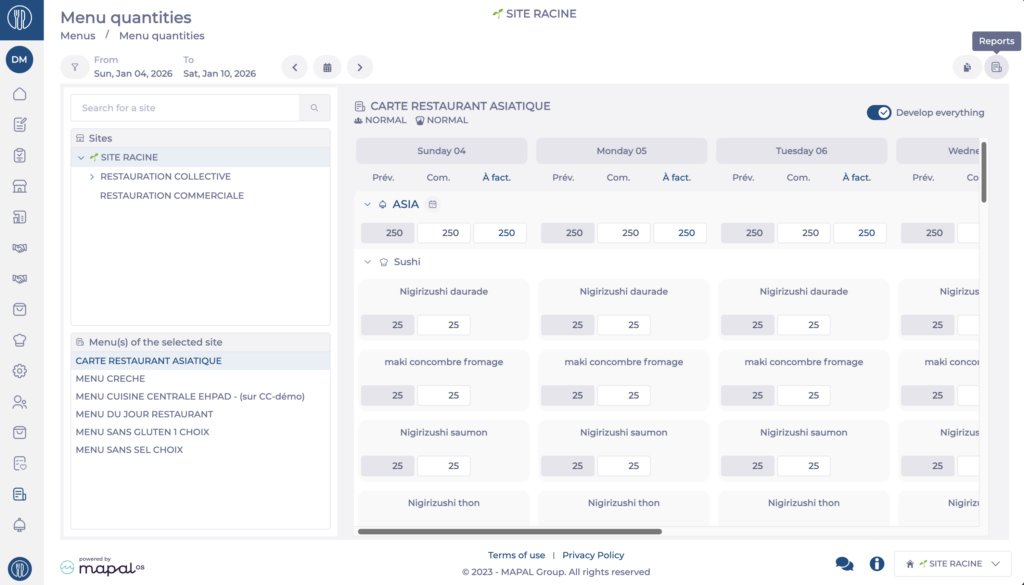
The Reports panel opens. The selected menu appears in the Menu field.
Note: this report was previously available from the Menus module only. It is now available from Menu quantities for faster access.
Configure the report
- Select Menu Week in the Report name dropdown.
- Select the start date and the end date in the Period calendar.
- Select the type of days to include under Opening days: Working days, Business days or Calendar days.
- Enable Display allergens? to include allergens in the report.
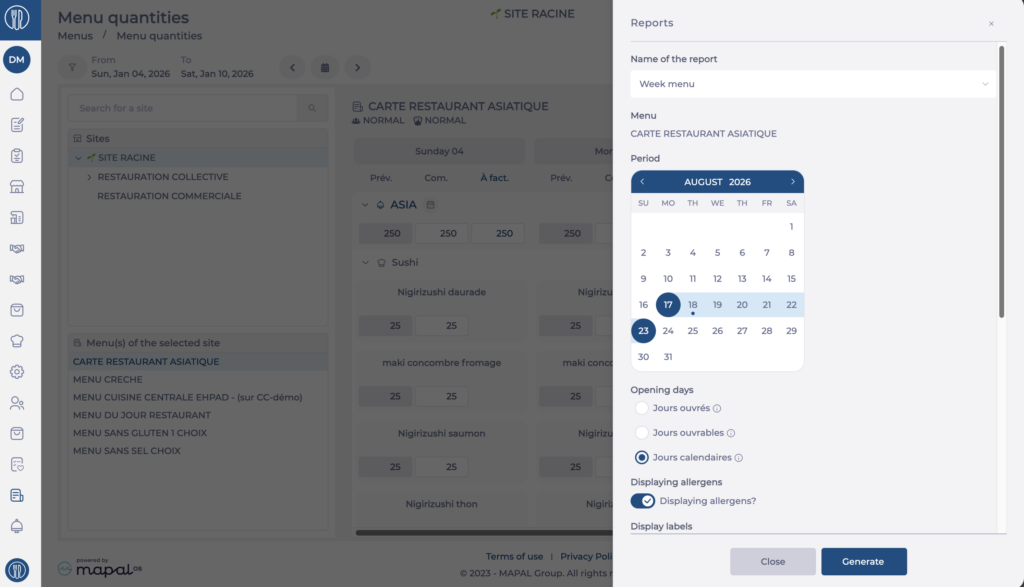
- Under Display labels, select of all items or of main items.
- Under Display labels (e.g. organic, fair trade, MSC sustainable fishing), select Yes, Yes without image or No.
- Optional: select one or more meal types in the Select meal types field.
- Optional: select one or more menu items in the Select menu items field.
- Select the file Format: ODT, DOC, DOCX or PDF.
- Select Generate.
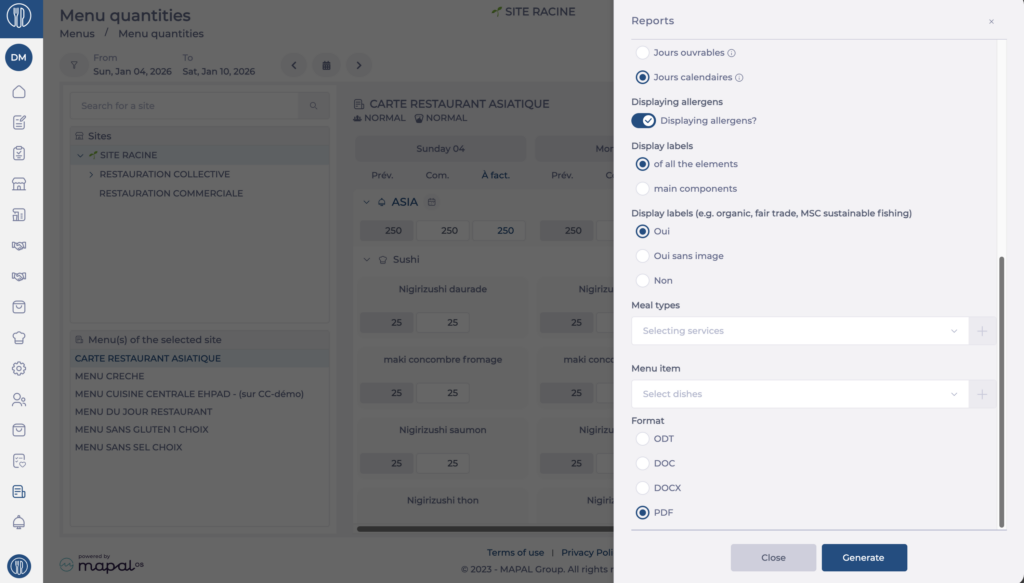
Select Close to leave the panel without generating a report.
