


Resetting a password through Mapal OS
For users on Mapal OS, your account should now be managed on the Mapal OS dashboard. You can find out more at Access Mapal OS (as a manager).
Note: if you're not sure whether you are on Mapal OS, contact your line manager or Mapal support.
Resetting the account password via Easilys site settings
Start from: the Easilys menu
- Select the small camera icon or your avatar and select Site parameters.
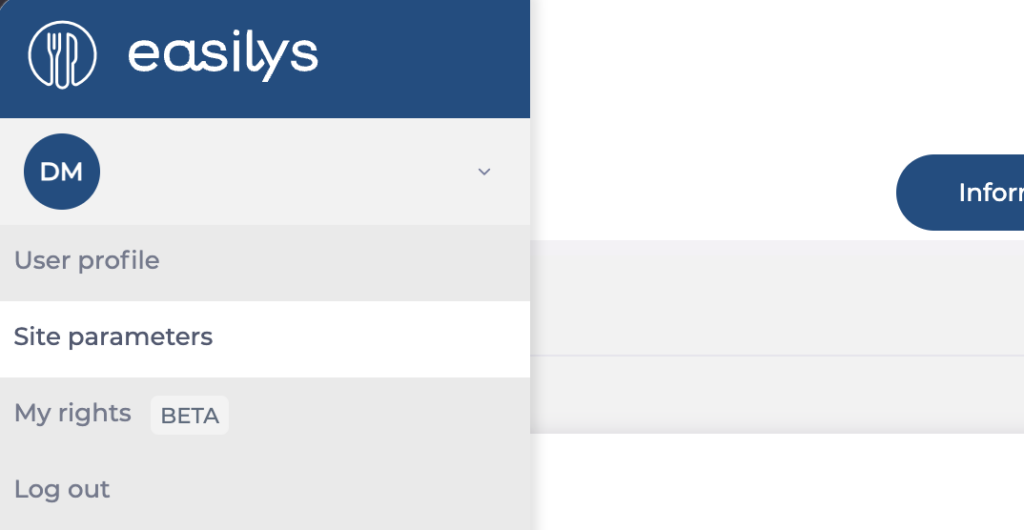
You are directly redirected to the "Informations" (Information) tab of the site settings.
- Select the Users tab.
- Select the orange pencil next to the user account for which you want to reset the password.
The Modify user window appears on the screen.

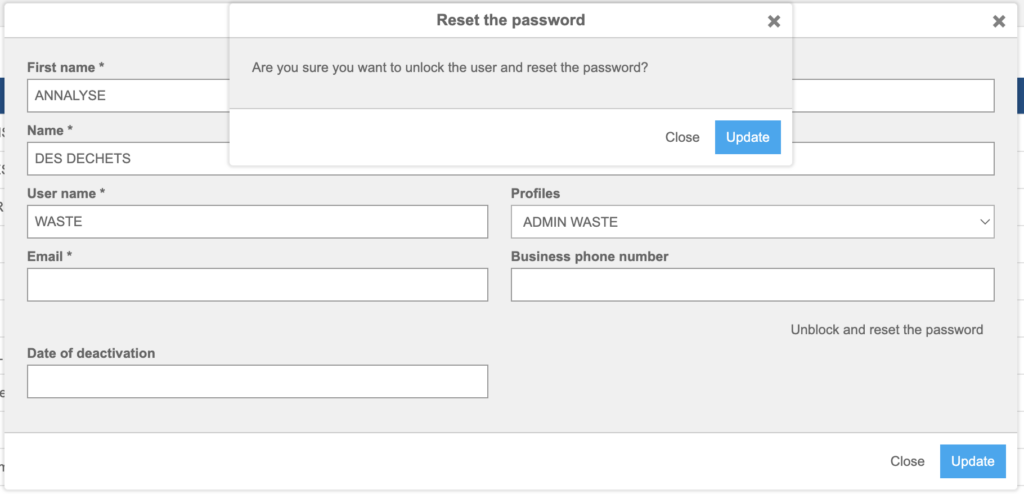
- Select Unblock and reset password.
The Reset the password confirmation window appears on the screen. - Select Update. The New password window appears on the screen.
- Note the temporary password automatically generated by Easilys. Once noted, select Close.
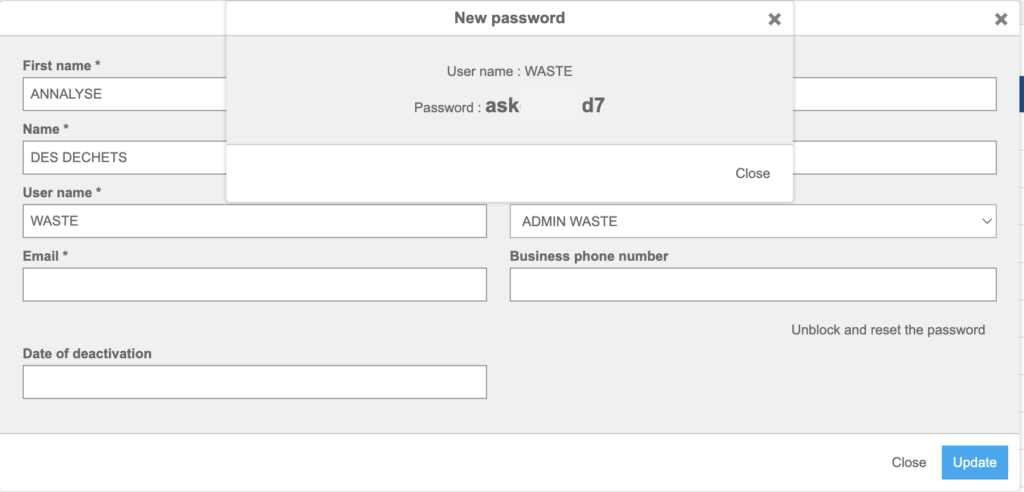
- Select Update to make the new generated password take effect.
