


Note: Every action that can be carried out in the application is subject to permissions. If you are unable to perform the actions described in this article, it may be because the required permissions are not activated for your user profile. Contact the Support team or your administrator for more information.
Note: Copying replaces all the rights of the profile you are configuring with those of the source profile. The rights it had before are not kept.
Copy a profile's rights
Start from: the Easilys menu.
- Select Sites > Rights management in the main menu.
- In the profile list, select the profile that will receive the rights.
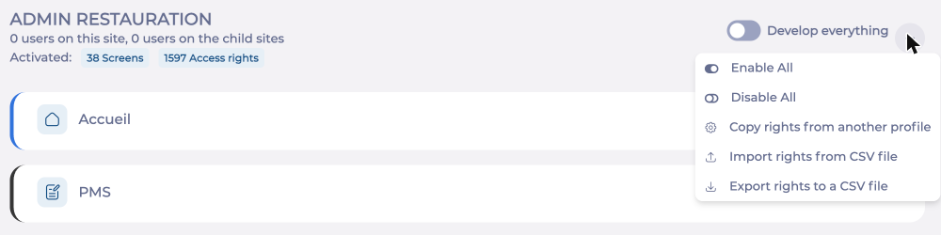
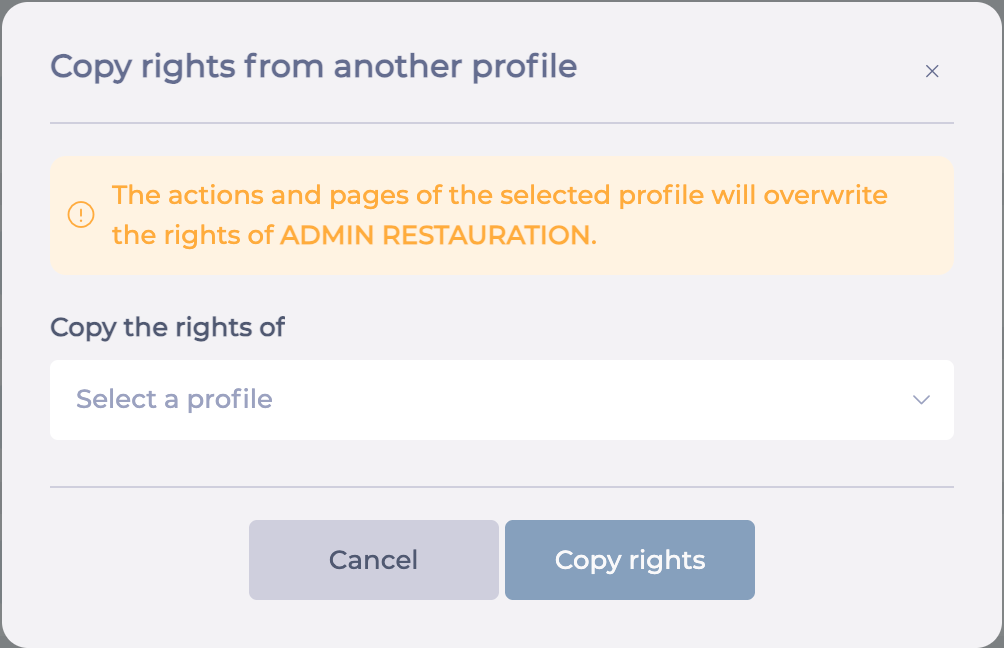
- Select the action menu (...) next to Develop everything, then Copy rights from another profile. The Copy rights from another profile window opens. A message reminds you that the actions and pages of the selected profile will overwrite the rights of the profile you are configuring.
- In the Copy the rights of field, choose the source profile, the one whose rights you want to reuse.
- Select Copy rights. The button stays inactive until you choose a profile.
A message confirms that the rights were copied, and the profile counters (screens and access rights) update.
Note: The copy applies immediately: you do not need to select Save. Users who are already signed in must sign in again for the change to apply to their session.
To adjust the rights after copying, see Configure a profile's rights. To apply one profile's rights to another from a file, see Export and import a profile's rights. To check the result side by side, see Compare the rights of several profiles.
