


Note: Actions on the Easilys platform are subject to user access permissions. If you are unable to perform the actions described in the articles, it may be because the required permissions are not enabled on your user profile. Contact the Support team or your administrator for assistance.
Start from: The Easilys menu.
- Select Stock > Stock.
- Select the Stock movements tab to display the relevant transactions. (For more information, see Consult stock movement details.)
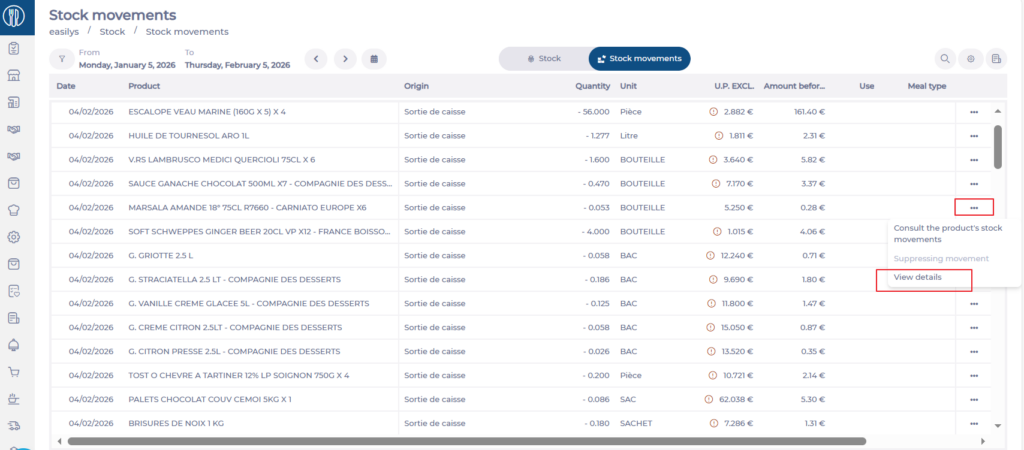
- Target a movement with the origin POS Withdrawal using the filter if needed.
- Select the POS withdrawal movement for which you want to understand the reason. You can do this either by selecting POS Withdrawal directly on the line, or by using the … button to access View details.
- The details panel appears, displaying:
- The name of the supplier product removed from stock.
- The publication date.
- The list of recipes and sub-recipes linked to this deduction.
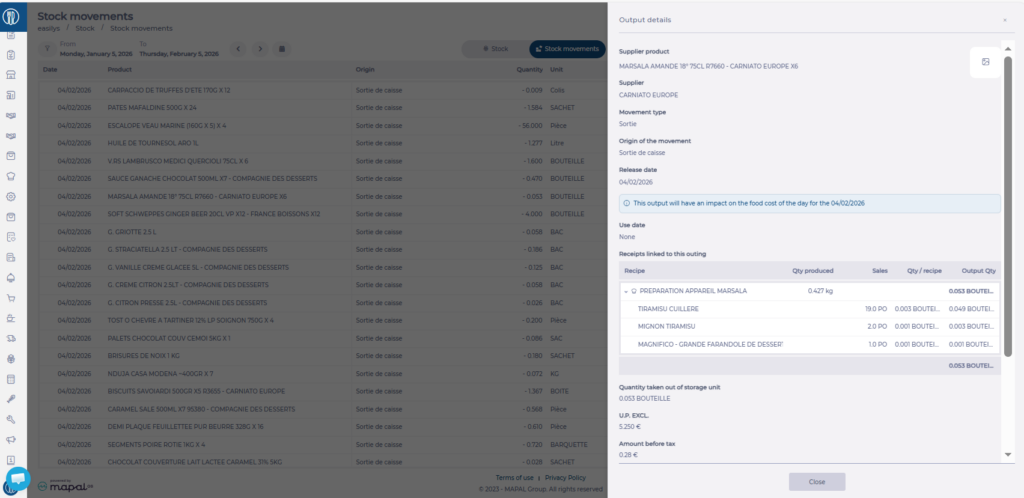
- When the product was removed from stock because it was part of recipes sold directly, you will see the recipe names, each with:
- The number of recipe portions sold.
- The quantity of product per recipe portion.
- The quantity of product deducted for the number of portions sold.
- When the product was removed from stock to produce a sub-recipe included in a sold recipe, you will see:
- The name of the sub-recipe, preceded by an icon.
- The number of sub-recipe units produced.
- You can show or hide the list of sold recipes that used this sub-recipe. This list displays for each recipe:
- The name of the sold recipe.
- The number of recipe portions sold.
- The quantity of product per recipe portion.
- The quantity of product deducted for the number of portions sold.
