


Note: Every action that can be carried out in the application is subject to permissions. If you are unable to perform the actions described in this article, it may be because the required permissions are not activated for your user profile. Contact the Support team or your administrator for more information.
Open the Comparator and choose profiles
Start from: the Easilys menu.
- Select Sites > Rights management in the main menu.
- Select the Comparator tab.
- Choose the profiles to display, from 1 to 6 in total, in one of the following two ways.
With the selection window
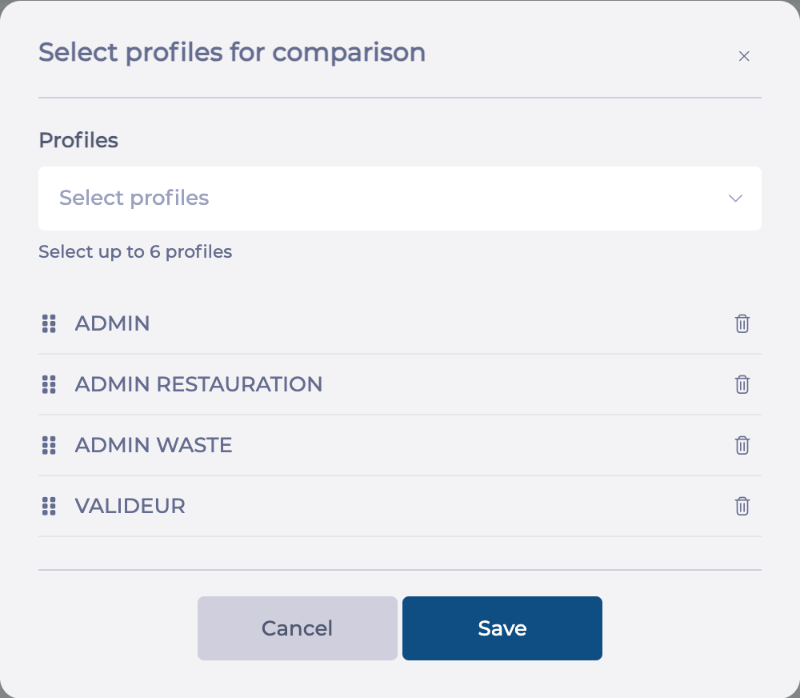
- Select Select profiles. The Select profiles for comparison window opens.
- In the Profiles field, choose the profiles to compare.
- To remove a profile from the selection, select the bin icon next to its name. To change the column order, drag a profile by the handle in front of its name.
- Select Save in the window to display the comparison.
Note: In this window, Save confirms the profile selection. It does not save any rights.
With the + button
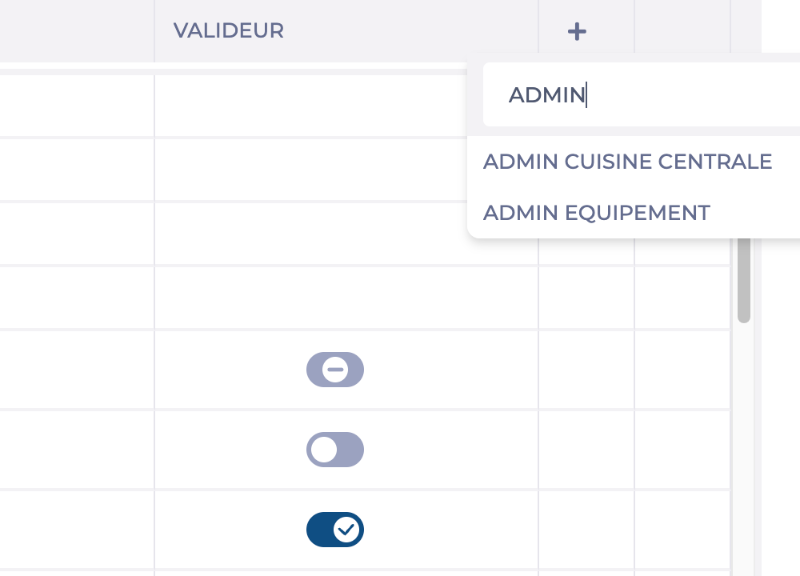
- Select the + button after the profile columns already displayed.
- Choose a profile in the list. The Search field in this list helps you find a profile by name.
The profile is added to the comparison. Repeat to add more profiles.
Read the table
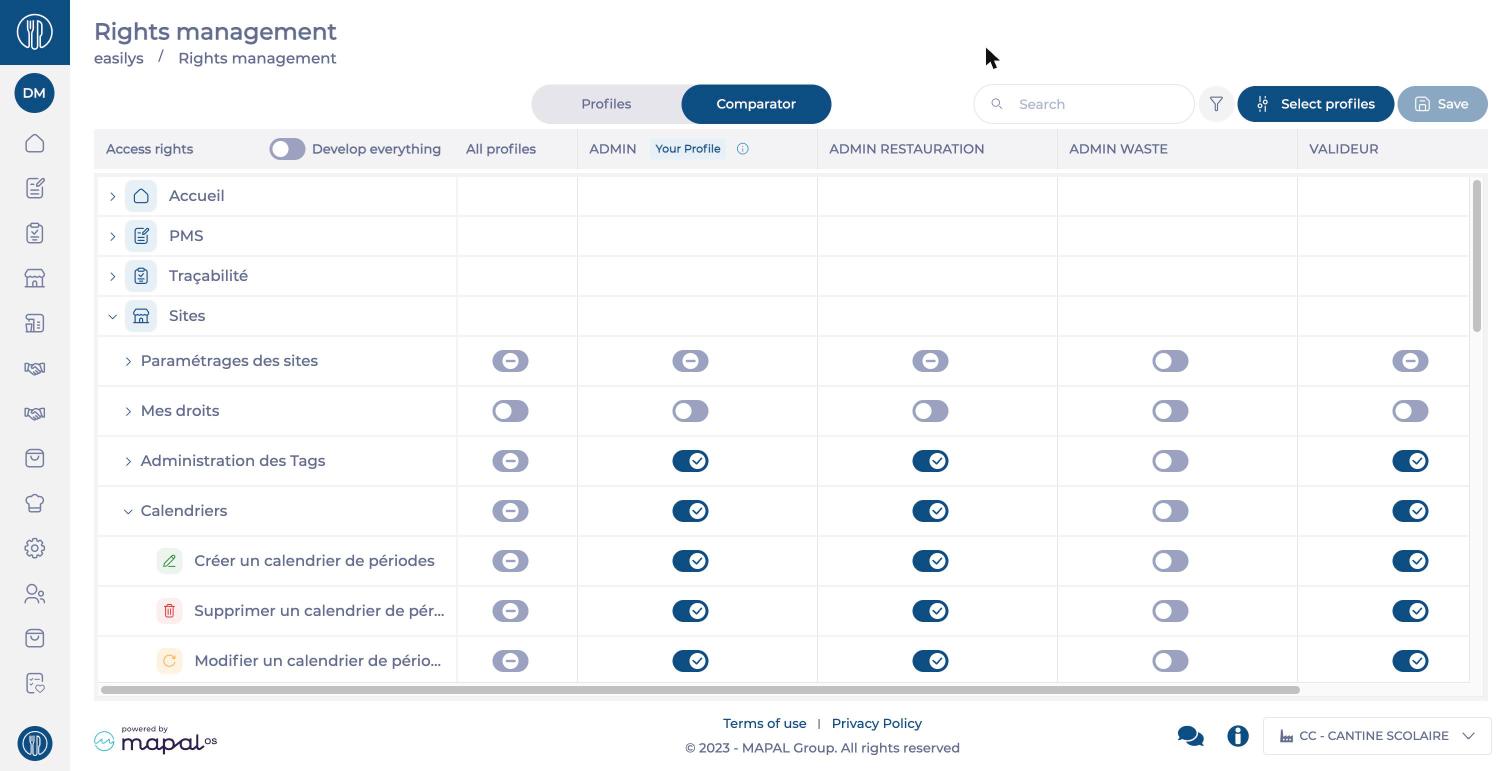
The table shows modules, screens and access rights in rows, and the chosen profiles in columns. To expand a module, select its arrow or use the Develop everything switch. Your own profile is marked with the Your Profile tag.
For each profile, a switch shows whether the right is granted:
- on: the right is granted.
- off: the right is not granted.
- with a dash, on a screen row: only some of the screen's rights are granted.
To find your way around the rights:
- an icon in front of each right's name shows its type (read, create, update, delete).
- tags next to some rights' names (for example Report or Analytics) describe what they are. They match the screen's filters: use the filter button to show only the rights you need.
- the Search field finds a screen or a right by name.
Change rights from the Comparator
The switches in the table can be changed. You can therefore set the rights of several profiles in one place, without going back to the Profiles view for each one. This is useful when you have several profiles to set up or profiles to align.
- To change a right for one profile, select the right's switch in that profile's column.
- To change a right for all the profiles displayed, select the switch in the All profiles column. This column also shows the overall state: a switch with a dash means the right is granted to only some of the profiles displayed.
- Select Save.
Note: As in the Profiles view, your changes only apply once you save them, and they apply to all users of the profiles you changed.
For other ways to configure rights, see Configure a profile's rights.
