


Note: Every action that can be carried out in the application is subject to permissions. If you are unable to perform the actions described in this article, it may be because the required permissions are not activated for your user profile. Contact the Support team or your administrator for more information.
Understand the indicator
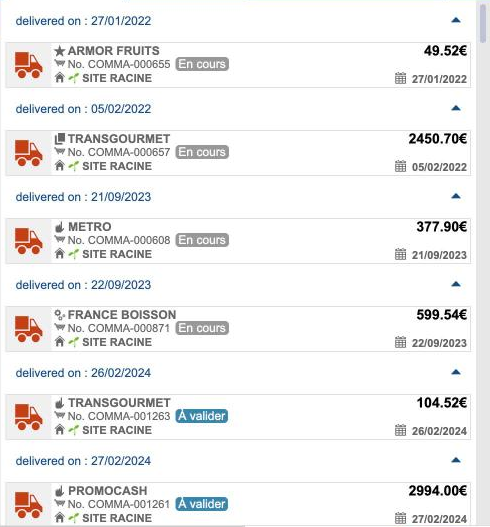
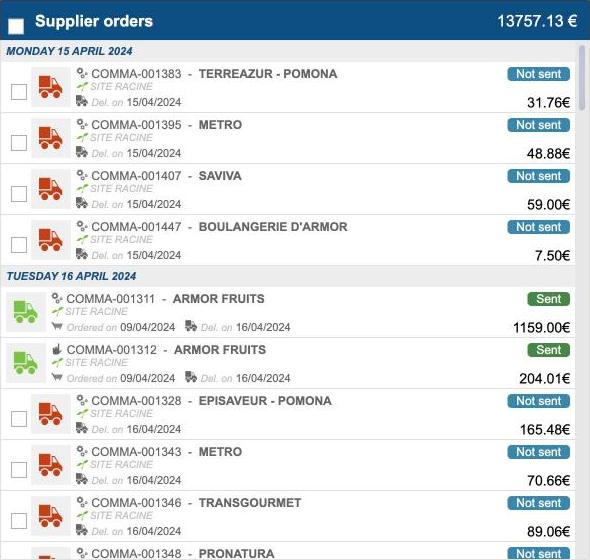
The indicator is the truck icon at the start of each card. Its colour shows the result of the checks run on the order:
- Red: at least one error was found. The order can't be validated until it is fixed.
- Orange: a warning was found, but no error. Check the order before you send it.
- Green: no error or warning was found. The order is valid.
Errors include: the delivery date falls on a bank holiday or isn't valid, the supplier's minimum order amount isn't reached, some supplier products can no longer be ordered for that delivery date, some products are below their minimum quantity, there is no product to order, or an external validation failed. Warnings include: your basket was updated with the available supplier products, or the delivery date is incorrect but you have the right to bypass the order deadline.
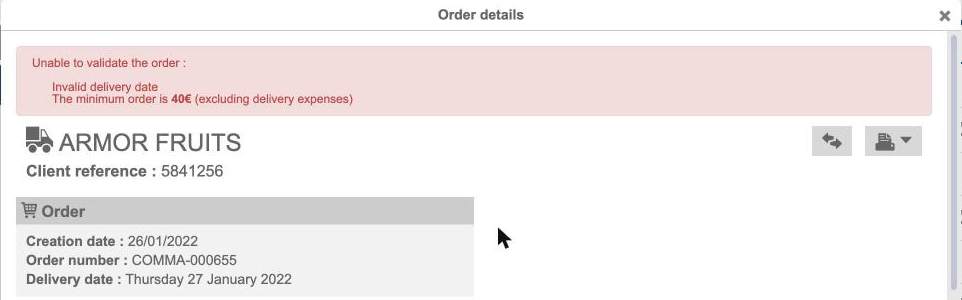
To see the details, hover over the indicator: the errors and warnings found are listed. When you open the order, errors are listed at the top under Unable to validate the order, and warnings are shown in an orange banner.
In the Supplier orders screen
Start from: Supplier orders > Supplier orders
- In the Carts tab, look at the indicator at the start of each card.
- For a red order, hover over the indicator to read the issues, then select the card to open the order and fix them.
In the Track orders screen
Start from: Supplier orders > Track orders
Cards for orders with the Not sent status show the same indicator. Hovering lists the errors and warnings found, and selecting the card opens the order.
To follow your orders after sending them, see Track the status of your orders. To validate an order, see Validate an order as a manager.
