


Note: Every action in the application is subject to permissions. If you cannot perform the actions described in this article, the required permissions may not be enabled for your user profile. For more information, contact the Support team or your administrator.
Start from: the Easilys menu.
Show the users of a profile
- Select Sites > Rights management in the main menu. The Profiles tab is displayed.
- In the list of profiles, select the profile you want. Under its name, the number of assigned users is shown for the current site and for the child sites.
- Select the eye icon in front of this number. A panel opens, with the name of the profile as its title.

Note: The eye icon is only displayed if the profile has at least one user and your profile has the rights to see the users of a profile on the current site or on the child sites. If you cannot see it, contact your administrator.
Read the list of users
The panel shows two lists:
- Users on this site: the family name and first name of the users assigned to the profile on the current site.
- Users on the child sites: the family name, first name, internal site code and site name of each user.
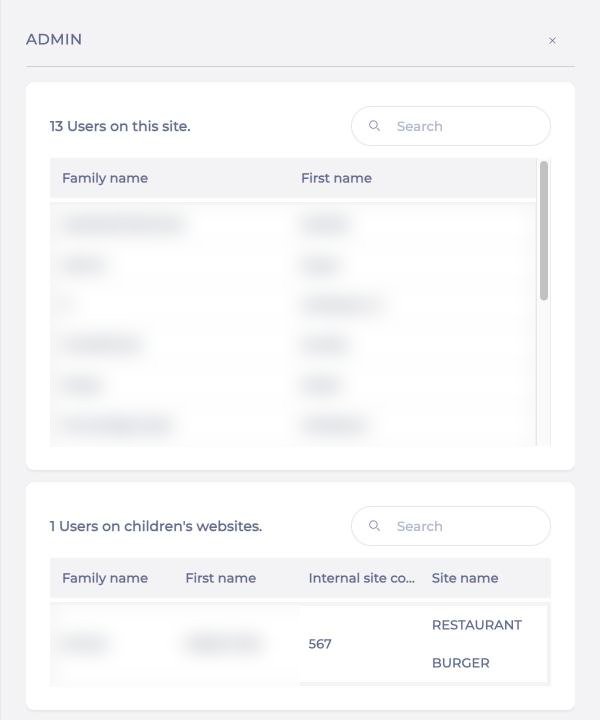
Each list has a Search field to find a user. The number shown at the top of each list is the number of users concerned.
To change the rights of this profile, see the article Configure a profile's rights. For an overview of the whole screen, see the article Understand rights management in Easilys.
